Make sure your alarms actually fire
Run the app's own setup check, confirm the alarm is armed, then prove it with one that rings.
Tomorrow's alarm verified three ways: the app's setup check all green, the alarm armed for the right kind of day, and a test alarm you hear ring.
- Open the three-dot menu and tap Check Setup. Green means nothing on your phone is blocking an alarm.
- Tap your next school day on the calendar and confirm the alarms are listed and switched on.
- Add a test alarm two minutes out, lock your phone, and let it ring.
Two things keep a scheduled alarm quiet: your phone has permission to silence it, or the alarm was never armed for that kind of day.
ScheduleLock answers the first one for you on a screen built for the question. The calendar answers the second. This page walks both, then fires a test alarm to prove it. Allow about four minutes, most of it waiting for that alarm to go off.
Start with Check Setup
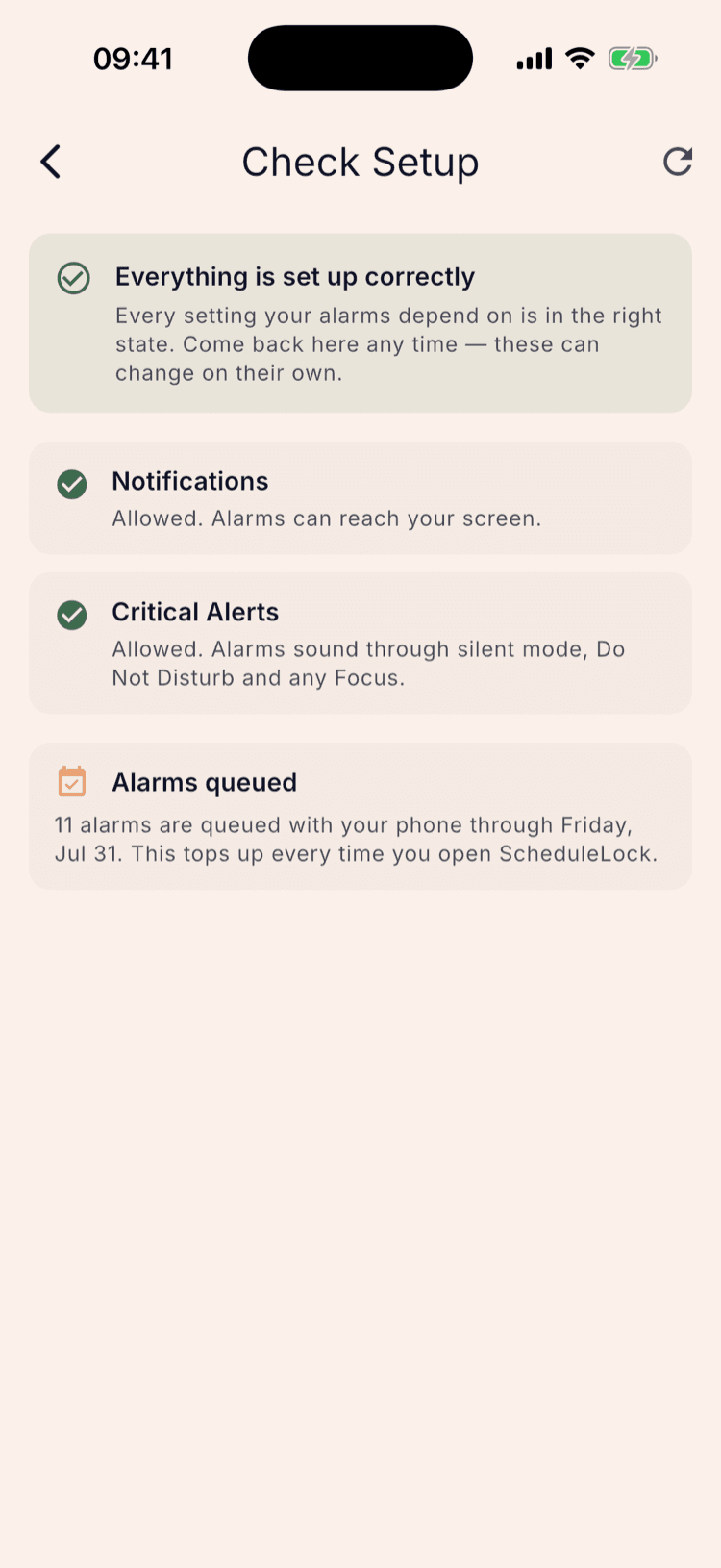
Open the three-dot menu at the top of the home screen and tap Check Setup. The app works through every phone setting an alarm depends on and reports what it finds.
The box at the top is the summary, and it is the part to read first. “Everything is set up correctly” means nothing on your phone is standing between a scheduled alarm and a ringing one.
Underneath it sits one row per setting. On iPhone there are two, Notifications and Critical Alerts. Notifications lets an alarm reach your screen at all; Critical Alerts lets it make a sound on a phone that has been silenced.
If your three-dot menu doesn't list Check Setup, update ScheduleLock. The screen re-runs its checks every time you open it, and again each time you return to the app, so it always reports the state your phone is in now rather than the state it was in when you set the app up.
What a problem looks like
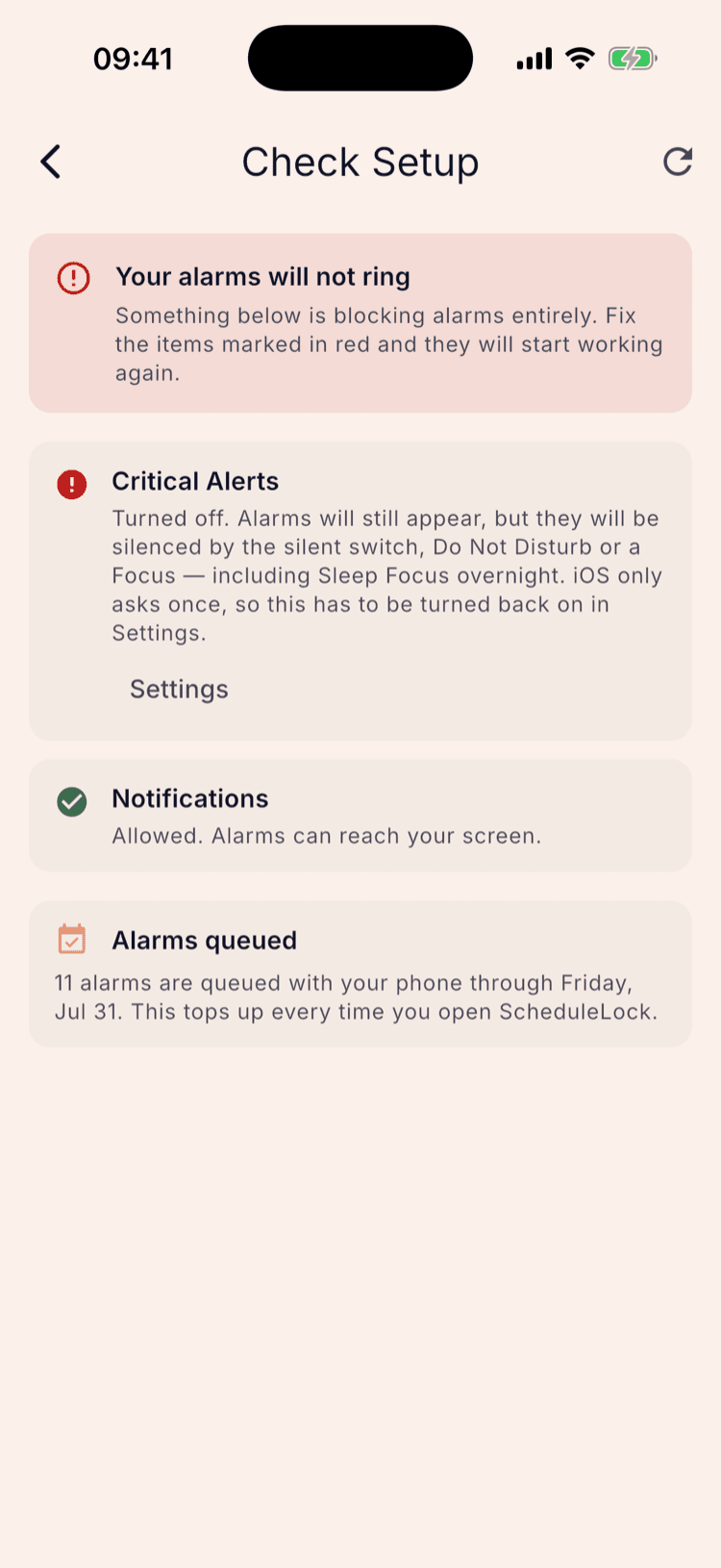
When something is wrong the summary turns red and says so plainly: “Your alarms will not ring.” The row responsible moves to the top of the list, so the thing you need to fix is the first thing you read.
Here Critical Alerts has been turned off. Alarms would still arrive, but the silent switch, Do Not Disturb or a Focus would keep them quiet. On a phone that sits silenced overnight, that is the difference between an alarm and no alarm.
The button on the row opens the place you fix it. Come back to the app afterwards and the row re-checks itself, so you can see it turn green rather than having to trust that it worked.
On iPhone, Critical Alerts is only ever asked for once, when you first set the app up. If it has been turned off since, your phone's settings are the only way back on, which is why the app sends you there rather than asking again.
Check it's armed for the right kind of day
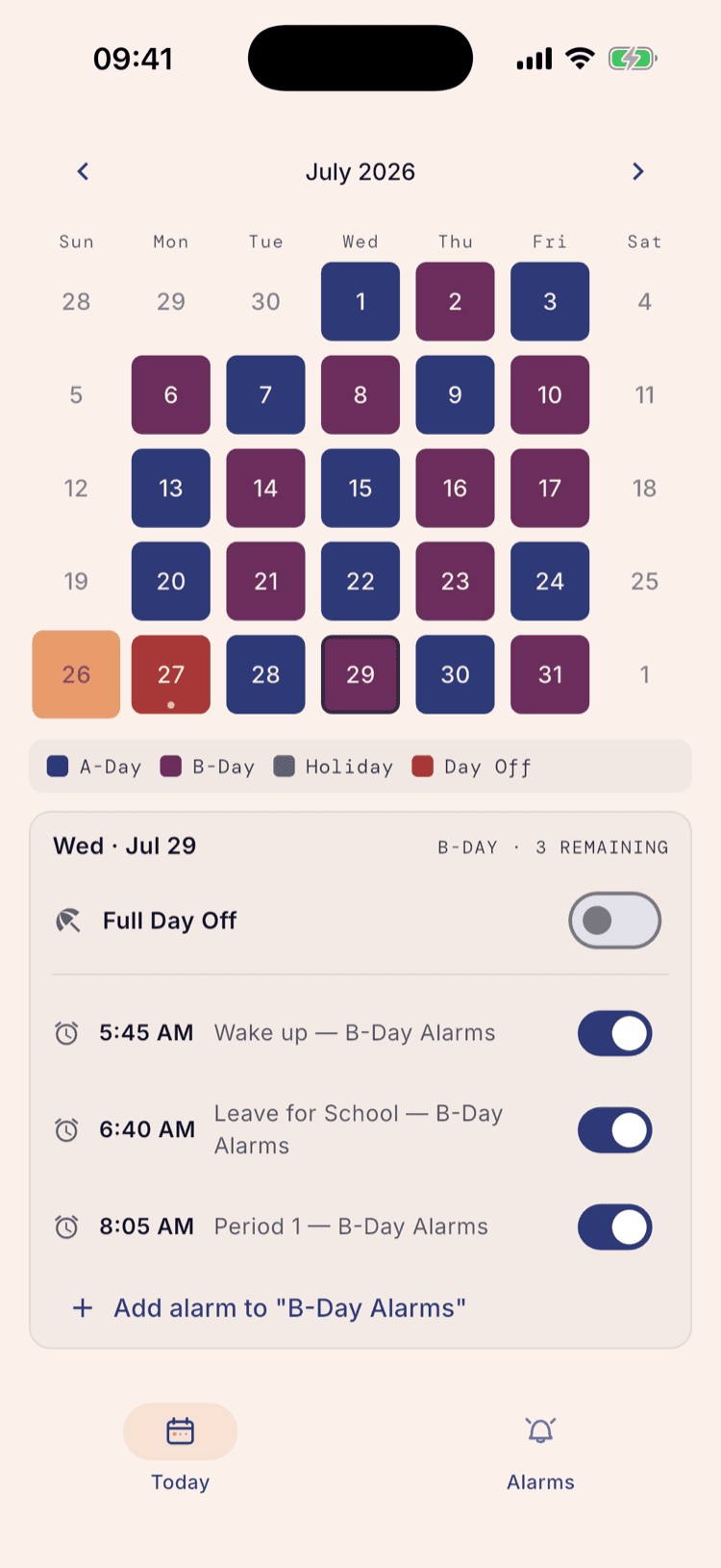
Open the calendar and tap the next day you have school. The panel underneath names the day type, counts what's coming, and lists every alarm with its own switch.
Here Wednesday the 29th is a B-Day, and all three alarms in the B-Day Alarms group are listed and on. That's what armed looks like.
This is the check Check Setup cannot do for you. That screen reads your phone; this one reads your schedule, and an alarm can be perfectly permitted and still sit in a group that today isn't.
An alarm only appears in this list when its group is switched on as well as the alarm itself, so anything showing as on here is queued. There's no second switch elsewhere.
The most common reason an alarm doesn't go off is the wrong group, not a phone setting: an alarm in your B-Day group doesn't exist on an A day. If a day looks emptier than expected, check the day type first.
Check the alarm's own volume
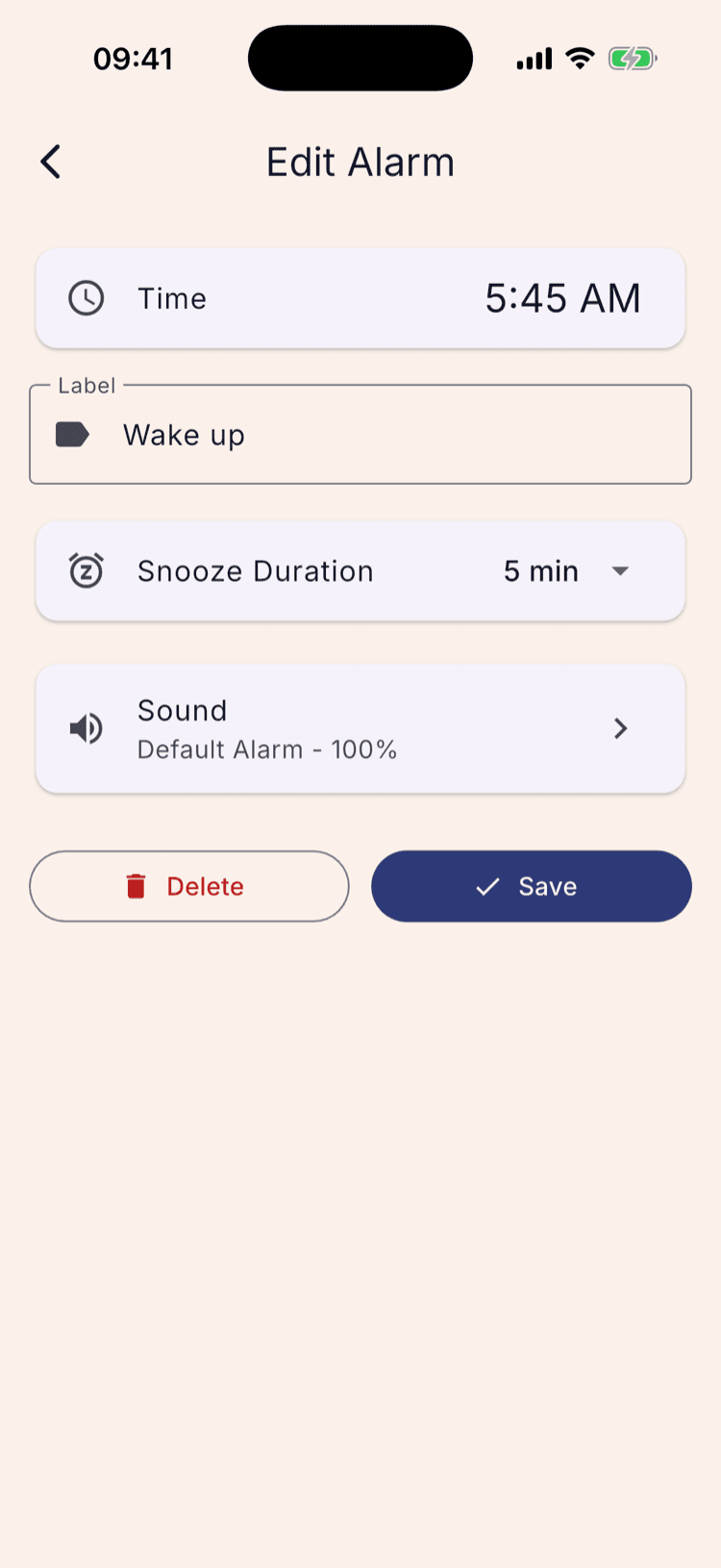
Every alarm carries its own volume, shown on the alarm itself: the Sound row gives the sound name and a percentage together. Tap it to change either.
ScheduleLock rings an alarm at the volume set here, not at your phone's current volume, on both iPhone and Android. An alarm at 100% rings at 100% even if the phone was turned down during a staff meeting.
Sound previews are the exception, and only on iPhone: they play through your phone's media volume, so a preview can be silent on a turned-down phone while the alarm itself would not be. The app says so on that screen when it detects it.
Add a test alarm a couple of minutes out
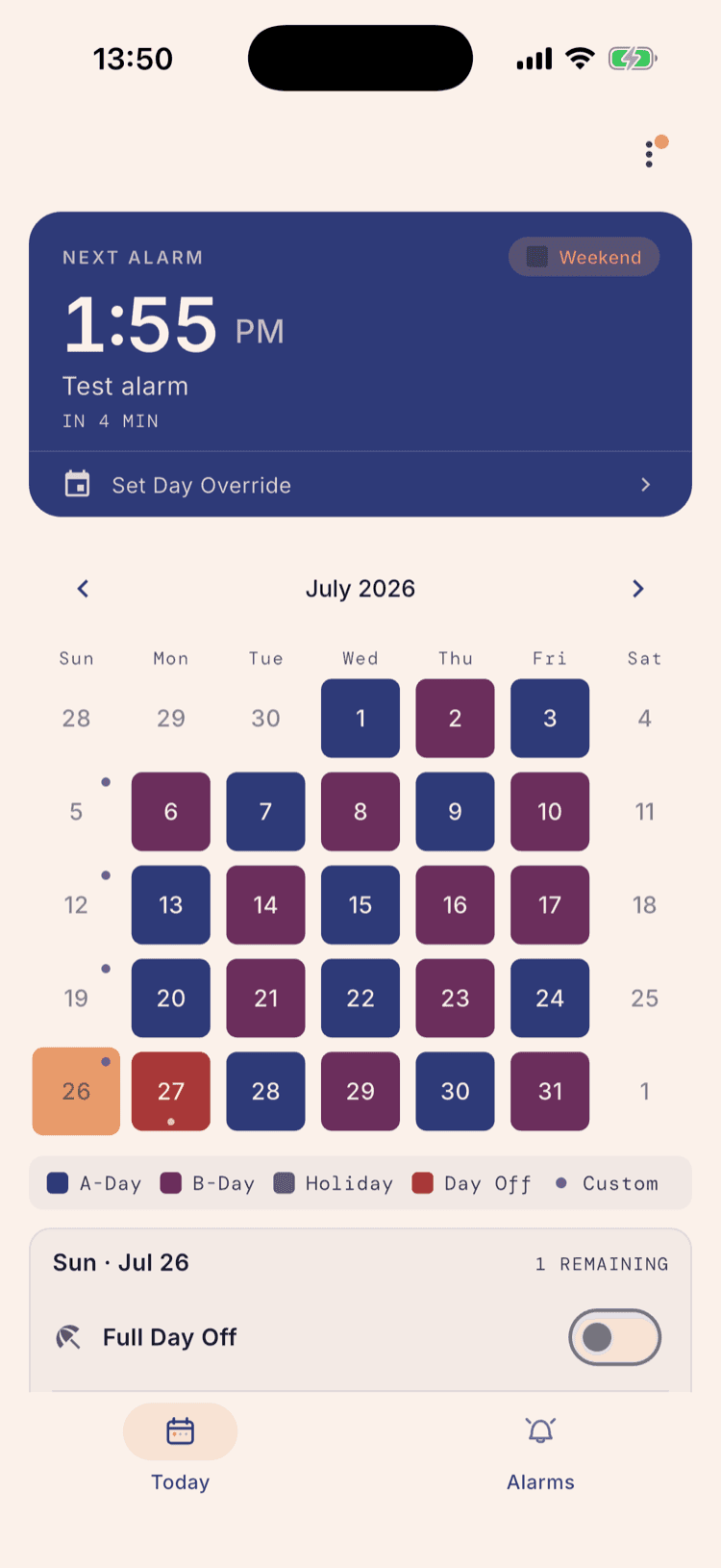
Add an alarm two or three minutes from now to a group that covers today and save it. The top of the home screen shows the countdown: the time, the label, and how long you've got.
Do this on a school day. On a weekend or during a break nothing will ring, and that's the app working rather than failing. To test on a day off anyway, put the test alarm in a Day-of-Week group that includes today: those ignore the rotation and fire on whichever weekdays you pick, which is what the shot below is doing on a Sunday.
Delete the test alarm when you're done. Nothing else about your setup changes.
Lock your phone and let it ring
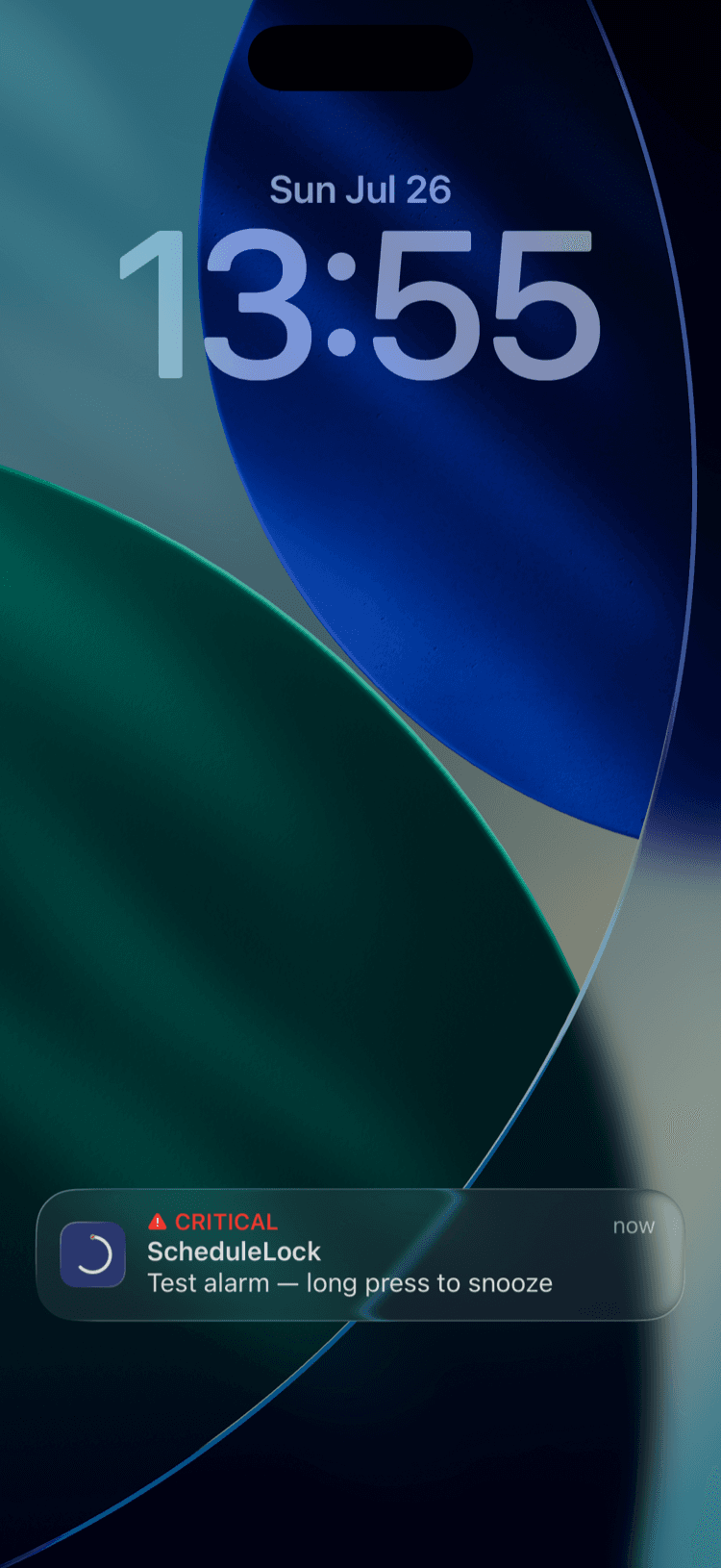
Leave the phone alone until it goes off. What arrives on the lock screen is a red CRITICAL tag, the app's name, and your alarm's label.
That tag confirms the alarm came through as a critical alert rather than an ordinary notification.
On iPhone, snooze and dismiss are behind a long press. The alarm text says so, because it isn't obvious. On Android they're ordinary buttons on the notification.
On Android, the same screen does more
Android needs more of your permission than iPhone does, and Check Setup lists all of it in one place. Where an iPhone shows two rows, an Android phone shows five: Notifications, Alarms & reminders, Appear on top, Battery usage, and Manage app if unused.
The routine doesn't change. Open Check Setup, read the summary, and fix anything that isn't green using the button on its own row. Each button opens the exact settings screen for that item rather than leaving you to find it.
Two of those five are worth understanding, because they fail quietly rather than obviously. Appear on top is what lets an alarm take over the screen, and on Android the sound comes from that screen rather than from the notification, so without it a silent notification is all you get. Manage app if unused lets Android strip an app's permissions after a few months of nobody opening it, which is an accurate description of a summer break.
This is the reason to open Check Setup occasionally rather than once. Notifications and alarm permissions tend to stay as you set them; battery and hibernation settings are the ones a phone can change on its own, months after you last thought about it.
What keeps it working
ScheduleLock hands your alarms to your phone five days at a time, and that queue is what your phone actually rings from. The Alarms queued card at the bottom of Check Setup tells you how far ahead it currently reaches, and it tops up every time you open the app. Across a normal school week you'll never get near the edge of it.
Long gaps are the exception. Come back from two weeks off without opening the app and the first days back were never queued, because they were more than five days away the last time the app looked. Opening it once refills the queue, so it's worth doing the evening before you go back. On Android there's a second reason to open it after a long break: a phone that hasn't seen an app in months can strip its permissions, which is what Manage app if unused controls.
The rest is automatic. Breaks keep the app quiet with no action from you, a day override applies to that one date only, and on Android a restart reschedules your alarms without you reopening anything.
Set it up once. Sleep through Sunday.
ScheduleLock is out now on the App Store and Google Play.
Get the app