Add your breaks and holidays
Put your school's no-school days on the calendar once, and stop thinking about them.
Every no-school day marked on your calendar, alarms silent through the break, and the rotation landing on the right day type when school resumes.
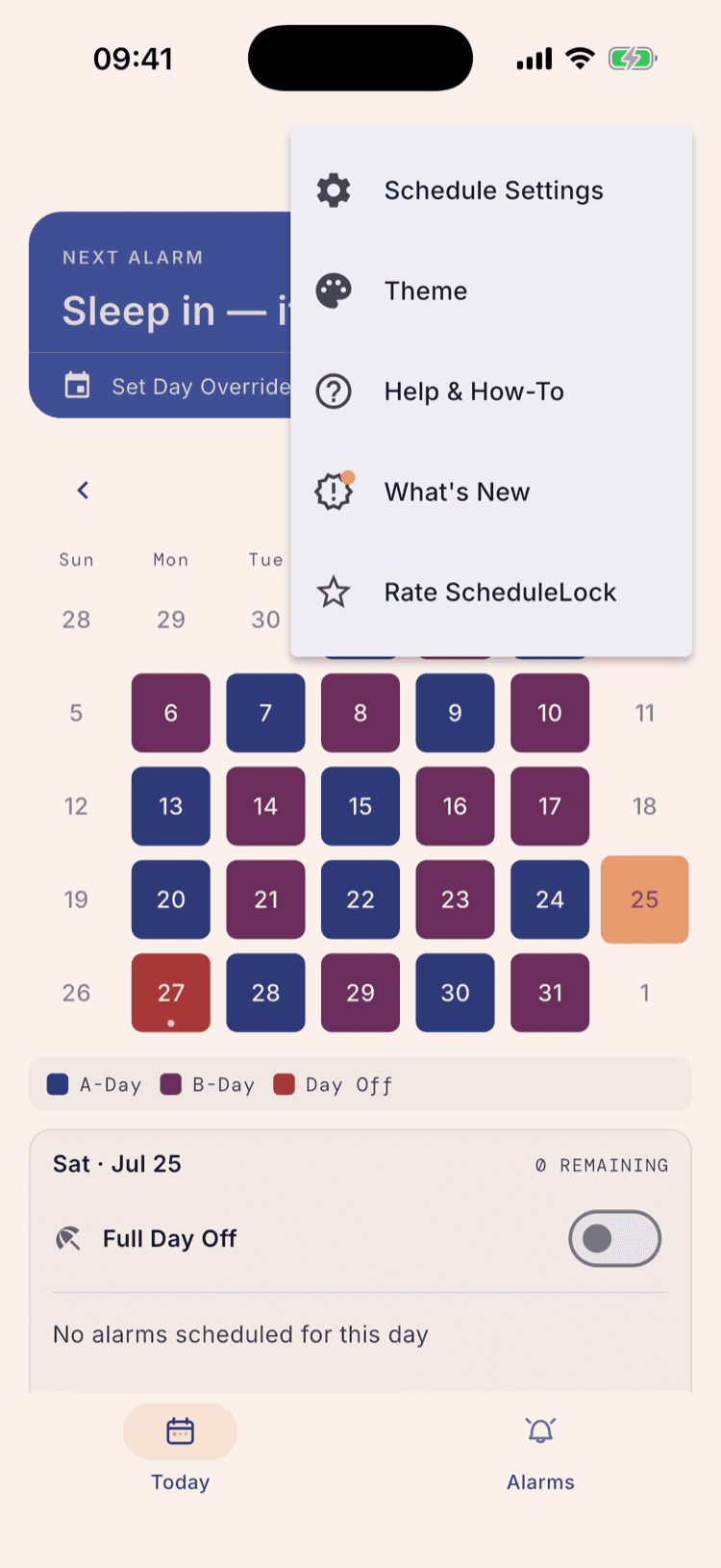
- Tap the three-dot menu → Schedule Settings, then Edit on your schedule.
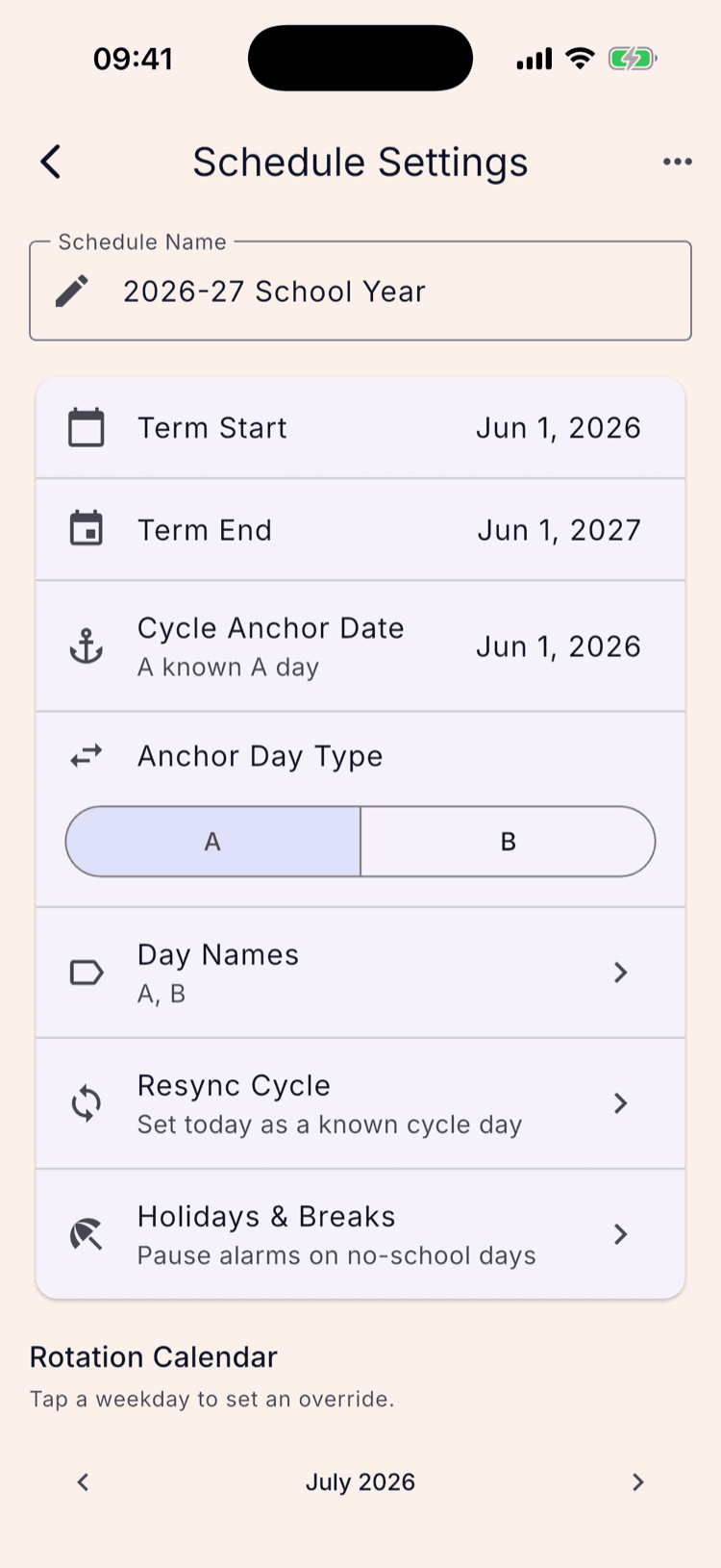
- Open Holidays & Breaks and tap Add break.
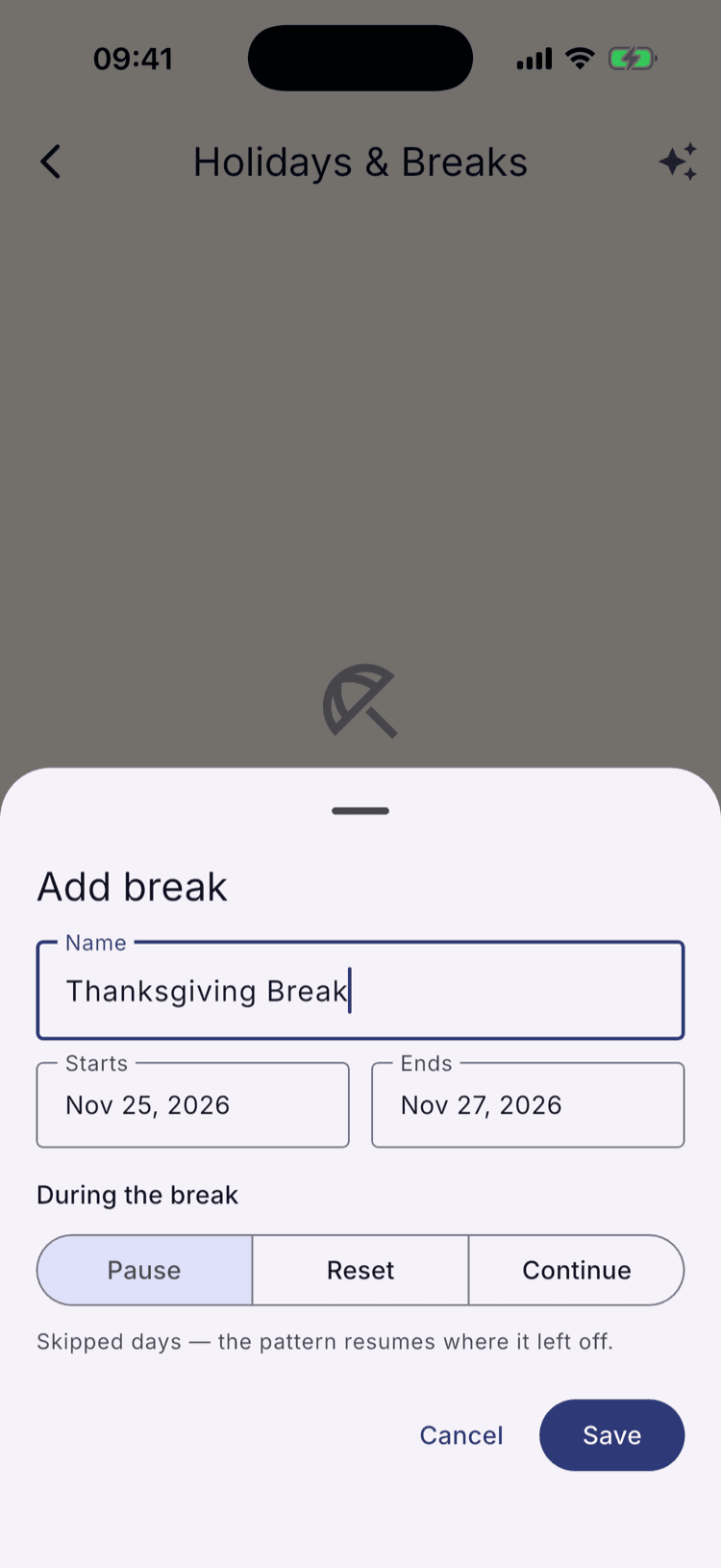
- Name it, set the start and end dates, and save.
Breaks do two jobs. They keep your alarms quiet on no-school days, and on a rotating schedule they stop your day types drifting away from your school's.
Add them once at the start of the year. This page covers adding one by hand; importing a whole calendar has its own tutorial.
Open your schedule
Tap the three-dot menu in the top right of the home screen, then Schedule Settings.
Pick the schedule you're using
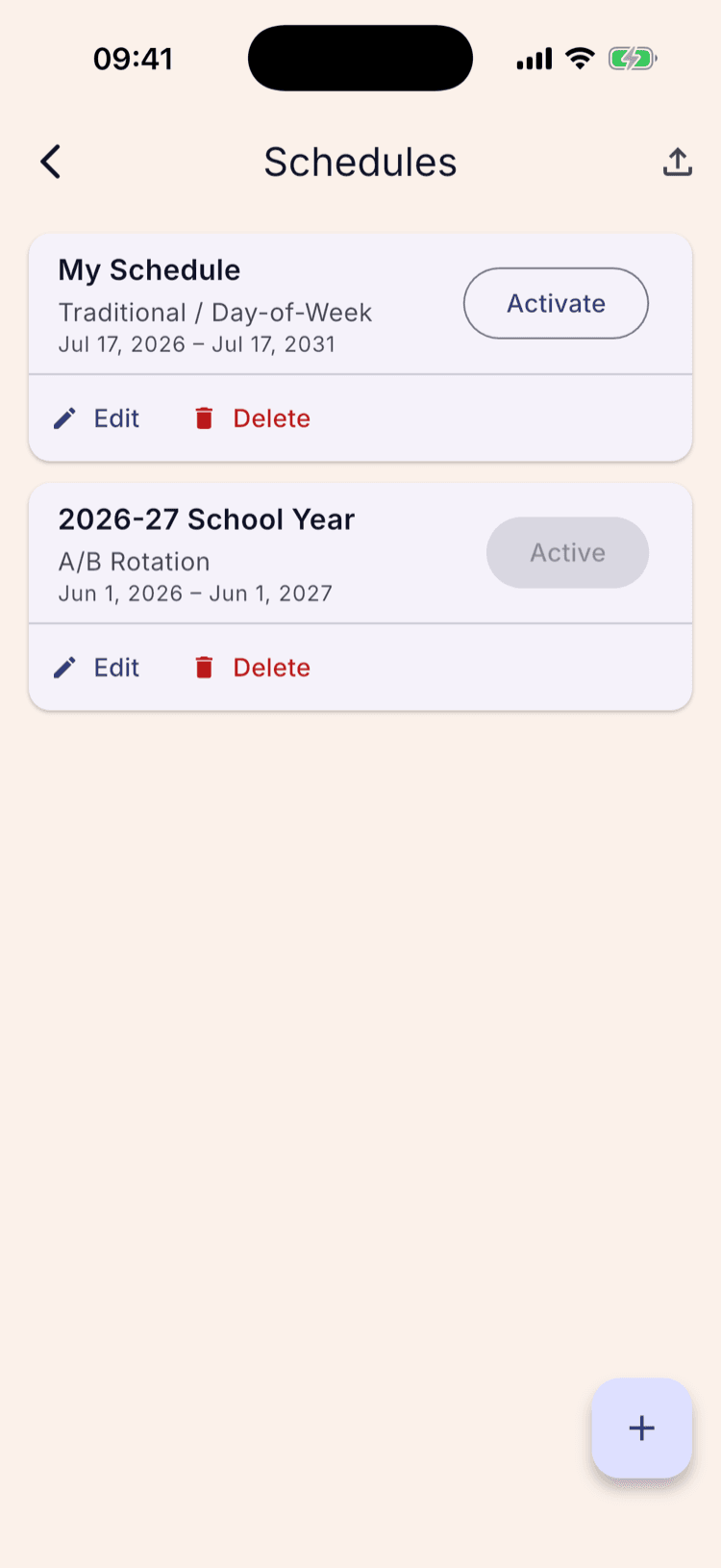
Schedule Settings opens your list of schedules first — the one you're on is marked Active. Tap Edit underneath it.
Breaks belong to a schedule, not to the app. If you keep a separate fall and spring schedule, add each break to the one that's running when it happens.
Open Holidays & Breaks
It's the last row of the settings card. Before you've added anything it reads “Pause alarms on no-school days”; once you have, it counts them back to you.
Tap Add break
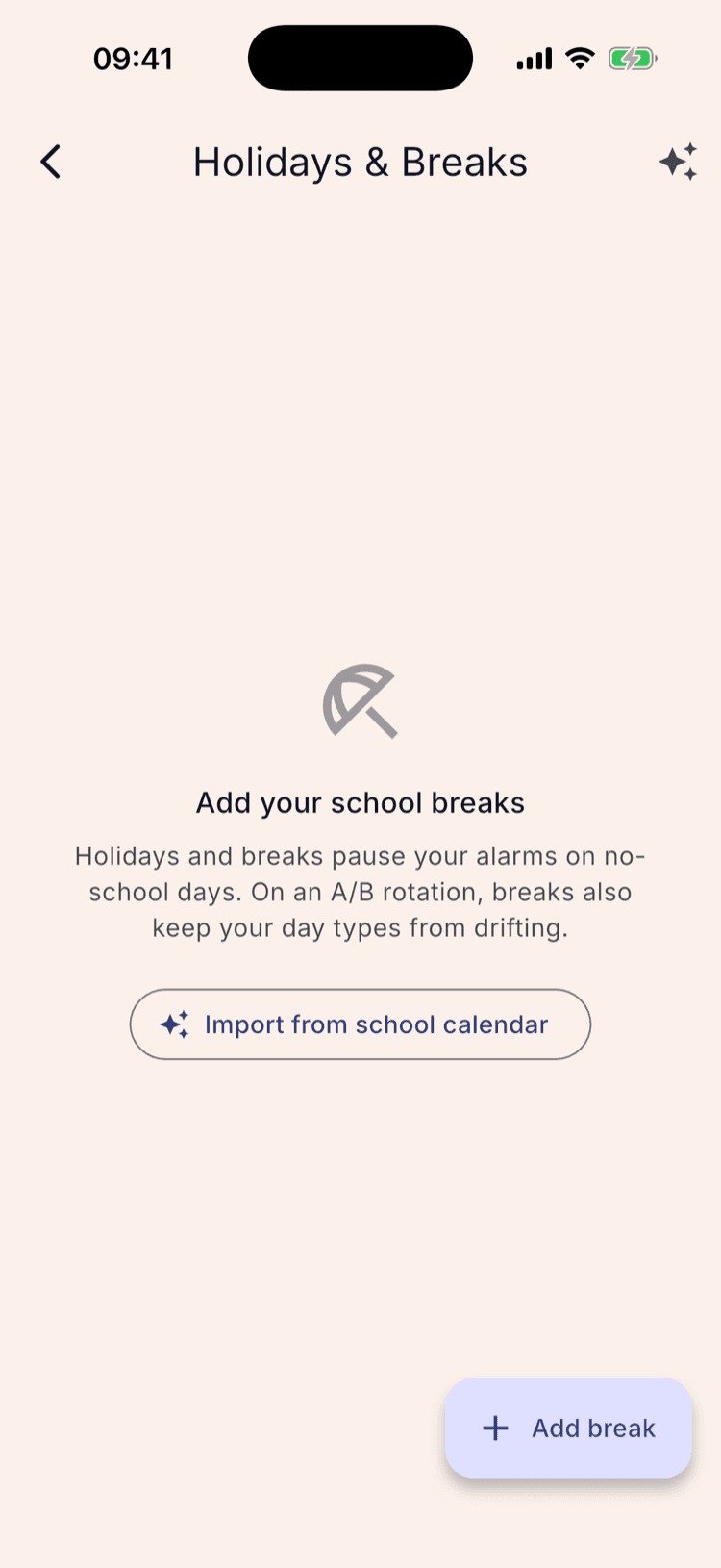
The first time through, the screen is empty and explains what breaks are for. The button is at the bottom right.
“Import from school calendar” is the other way in: hand it your district's PDF and it pulls the dates out for you. That one has its own tutorial.
Fill it in
Give it a name you'll recognise later — “Thanksgiving Break”, “Winter Break”, “Teacher Workday”.
Set Starts and Ends. Both dates are part of the break, so a Wednesday-to-Friday closure runs Nov 25 to Nov 27. For a single day off, leave both dates the same.
“During the break” sets what the rotation does. Pause is already selected and is the common choice: break days don't count, and the pattern picks up where it left off.
Reset restarts the cycle on the first day back; Continue lets the days advance while staying silent. Choosing between the three is its own tutorial, linked below.
Save, then look at the calendar
Tap Save. The break lands in the list with its dates and a one-line summary — “Pauses rotation” — of what it does to your cycle.
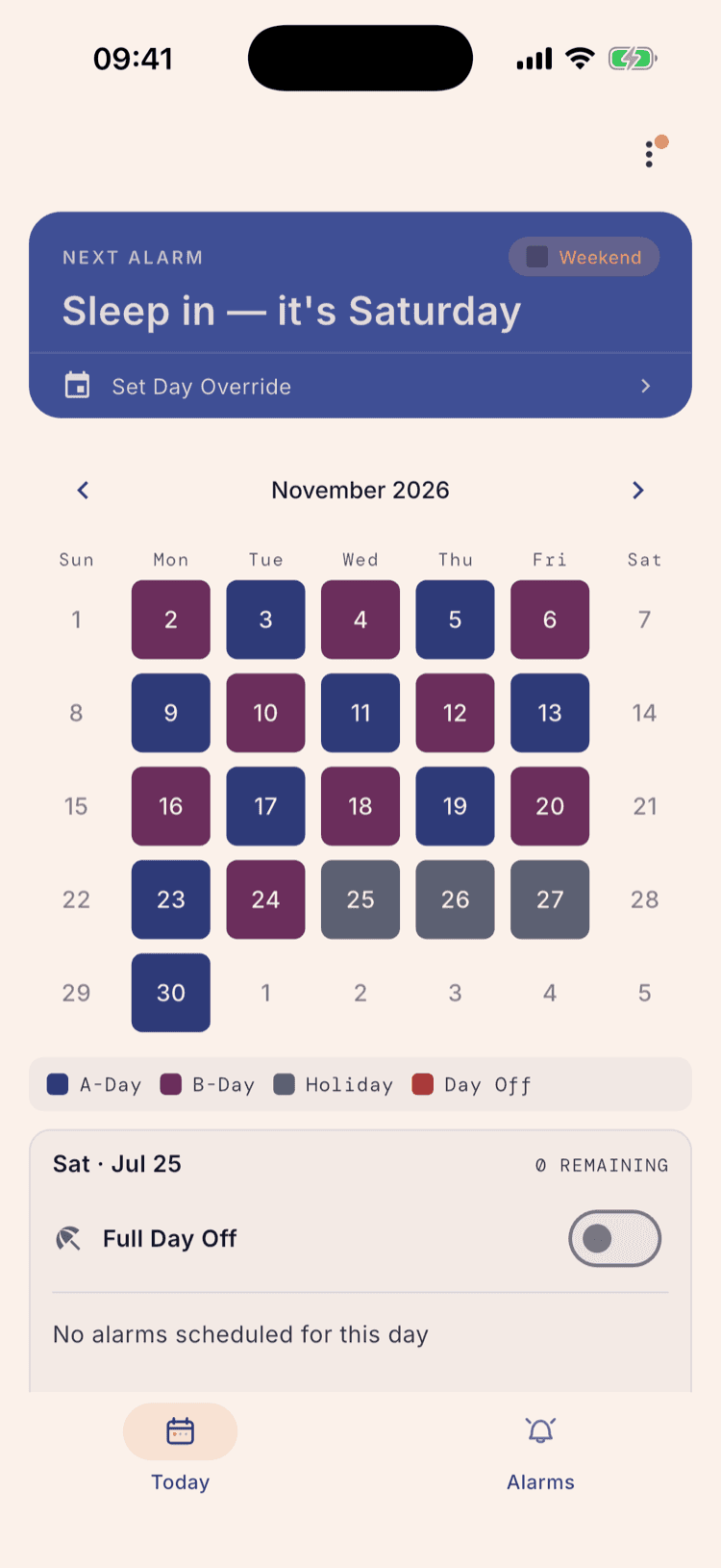
Go back to the home screen and page the calendar forward to the break. Those days turn slate grey, and a Holiday key joins the legend underneath.
Check the day after. In the shot, Nov 23 is an A-day and Nov 24 a B-day, the break greys out the 25th through the 27th, and Nov 30 comes back as an A-day — because B was the last day type that counted.
What happens next
Nothing to undo. Your alarms stay quiet for those dates and come back on their own the next school day.
Add the rest of the year the same way. Every break is its own entry, so a long weekend in October and two weeks in December are two separate rows — worth doing in one sitting with the district calendar in front of you.
If you add a break that's already partly behind you, it changes how many school days sit between your anchor and today. The app pins today to the day type it's already showing and asks you to double-check the dates after the break. Future breaks never do this; they only move days that haven't happened yet.
A break isn't the same as a day override. Breaks are the closures you know about in August; a cancellation you hear about that morning is a day override.
Set it up once. Sleep through Sunday.
ScheduleLock is out now on the App Store and Google Play.
Get the app