Handle a snow day in one tap
Silence every alarm for one day when school is cancelled, and get the next school day back automatically.
Every alarm silenced for one specific day, with the next school day back to normal on its own.
- On the home screen, tap the day school is closed.
- Turn on Full Day Off.
- The next school day returns to normal on its own.
A Day Override silences a single date without changing your schedule.
It takes two taps, and it undoes itself — the override applies to that one date only.
Find the day on your calendar
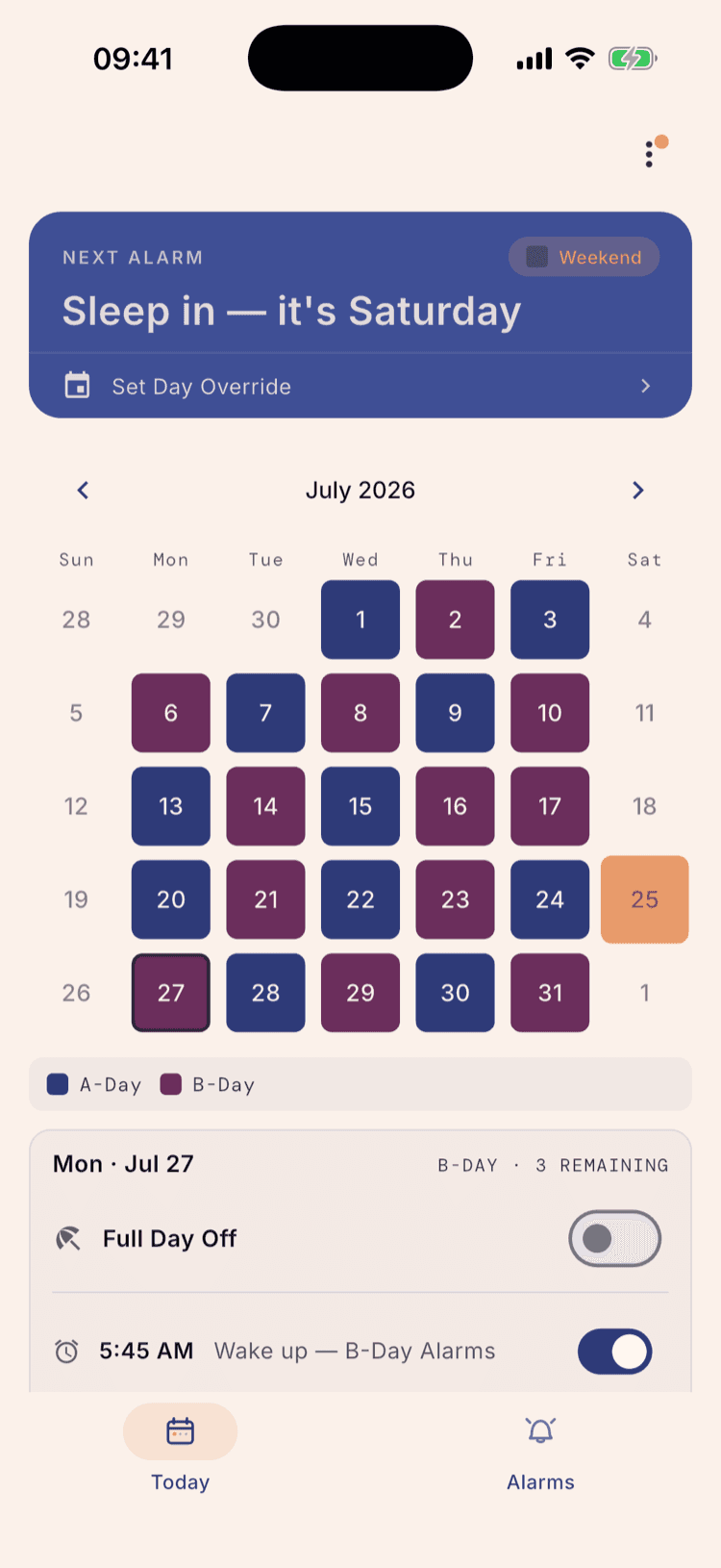
The home screen's calendar colours every school day by its type. Tap the day school is closed — today, or a day further out if the call came early.
For today specifically there's a shortcut: the “Set Day Override” row on the card at the top of the screen opens the same controls without hunting for the date.
Check what's scheduled
A panel opens naming the date and its day type, then lists every alarm set to fire that day — what you're about to silence.
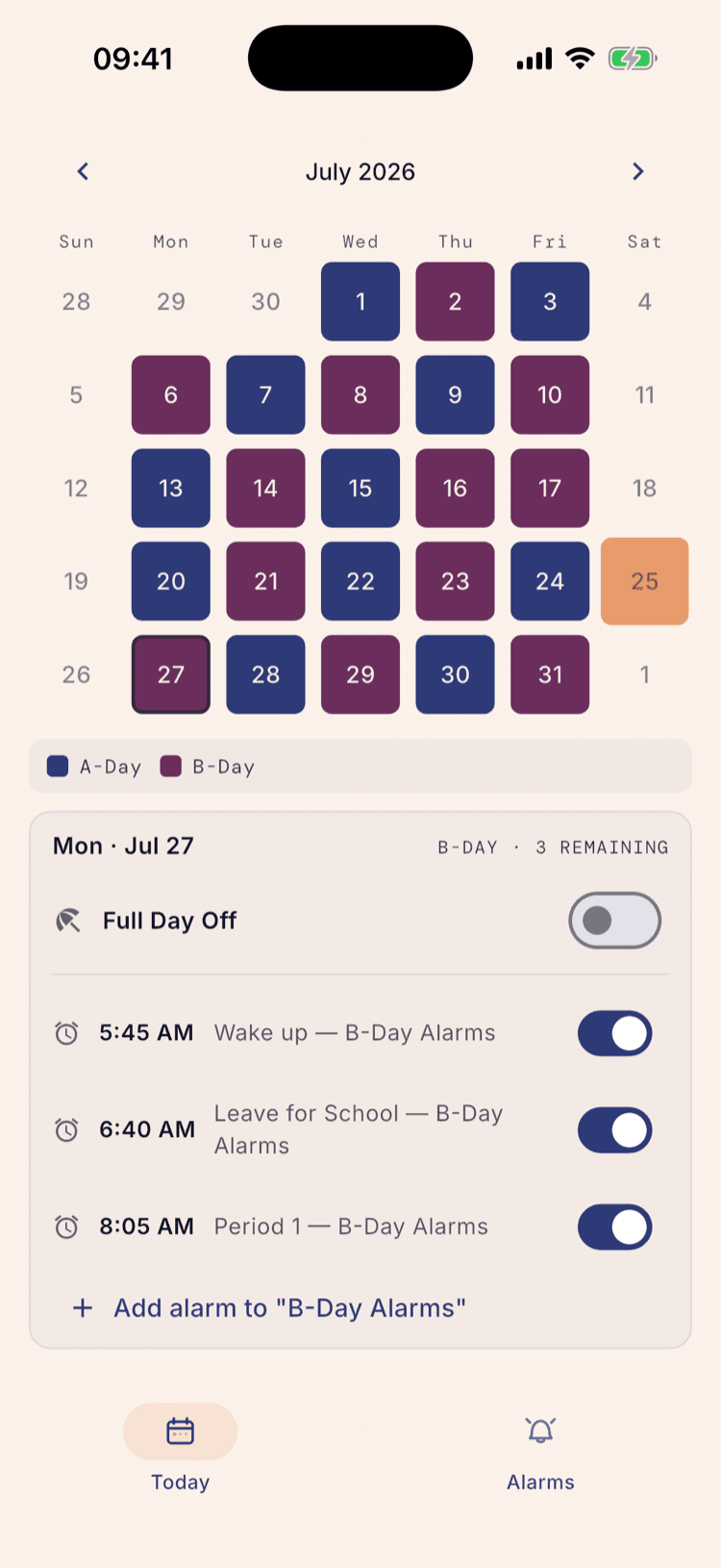
Turn on Full Day Off
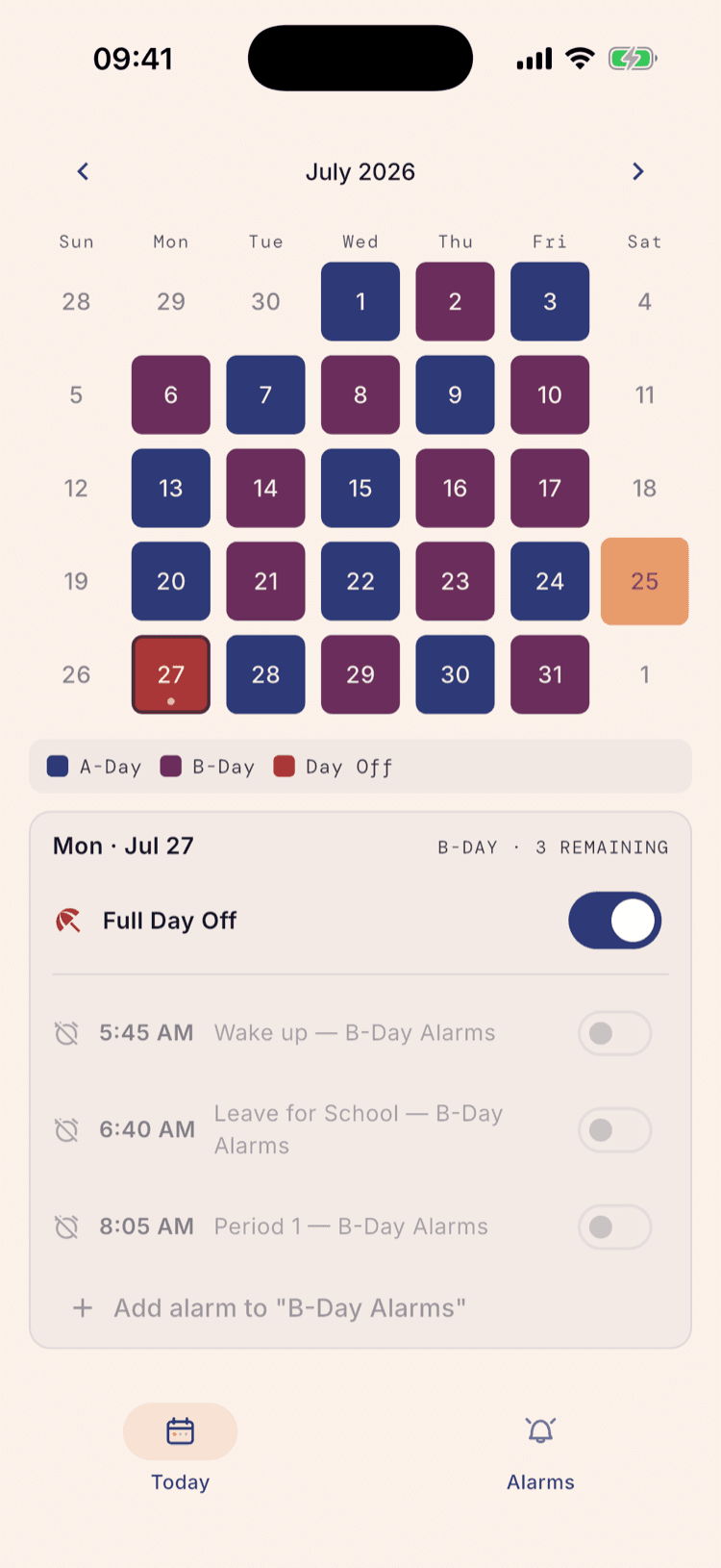
One switch. Every alarm for that day greys out, the calendar square turns red, and a “Day Off” key appears in the legend so the day reads as handled from the month view.
For a delay rather than a closure, leave Full Day Off alone and switch off only the alarms that don't apply — a two-hour delay usually means silencing the early ones and keeping the rest.
What happens the next day
An override applies to the one date you set it on. The next school day your normal alarms come back on their own — there's no switch to remember to flip.
The rotation isn't affected. A day override doesn't shuffle A-day and B-day; the cycle picks up where it left off. To pause the cycle itself, use a break instead of an override.
If the closure is reversed, tap the day again and switch Full Day Off back off.
Set it up once. Sleep through Sunday.
ScheduleLock is out now on the App Store and Google Play.
Get the app